> For the complete documentation index, see [llms.txt](https://docs.replicacyber.com/llms.txt). Markdown versions of documentation pages are available by appending `.md` to page URLs; this page is available as [Markdown](https://docs.replicacyber.com/user-guide/account.md).
# Account
## Login
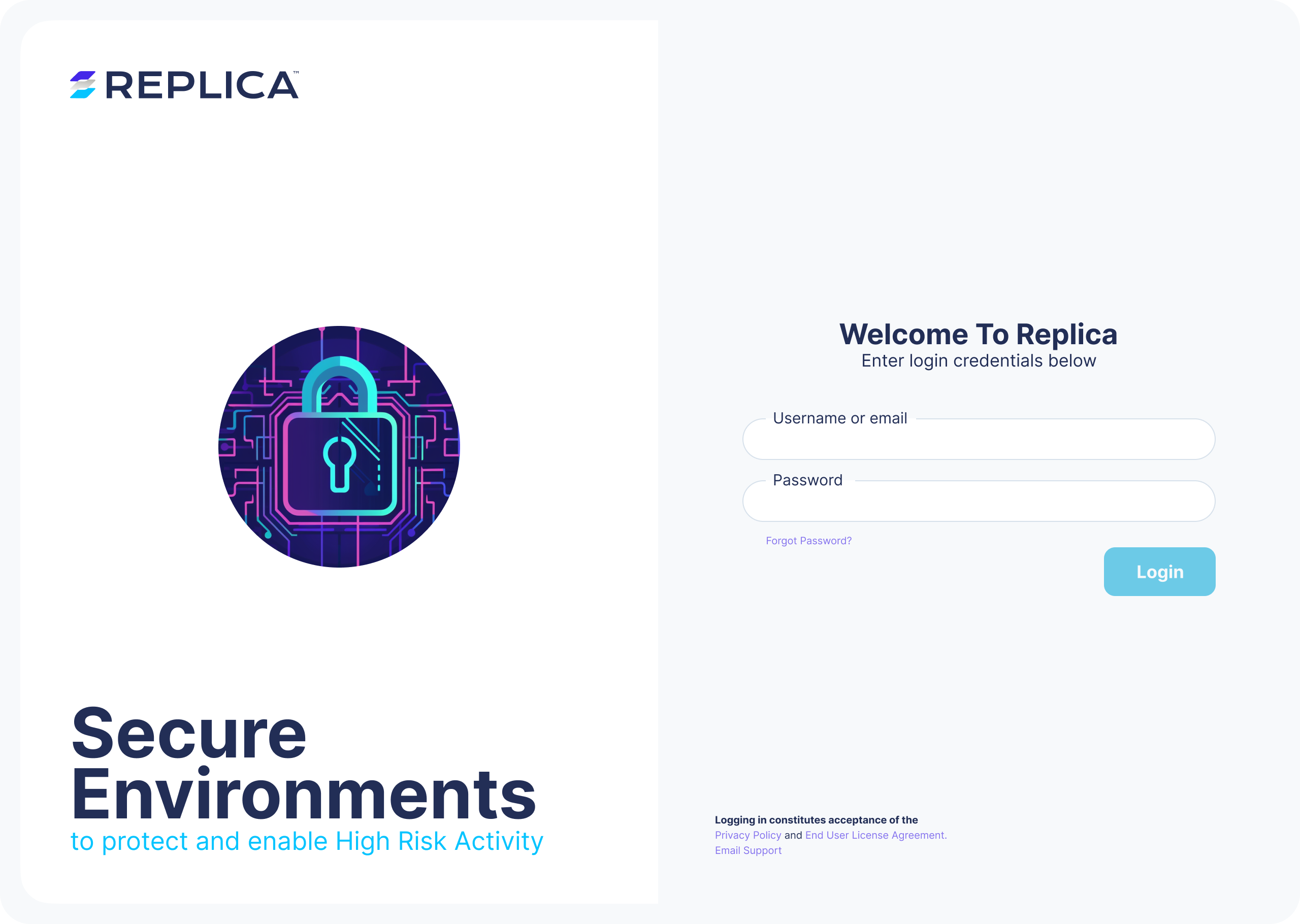
Open a web browser and go to the Replica URL provided by your administrator. Sign in with the credentials you were given.
On your first login, you may be asked to change your password, accept terms of use, or set up one-time passwords. This depends on your organization's settings.
{% hint style="danger" %}
For security reasons, you cannot bookmark the generic login page. If you want a bookmark, save the exact login URL from your administrator or bookmark the site after you sign in.
{% endhint %}
{% hint style="info" %}
Available features depend on your account permissions and your organization's Replica subscription. If you need additional access, contact your Replica administrator.
{% endhint %}
## Logout
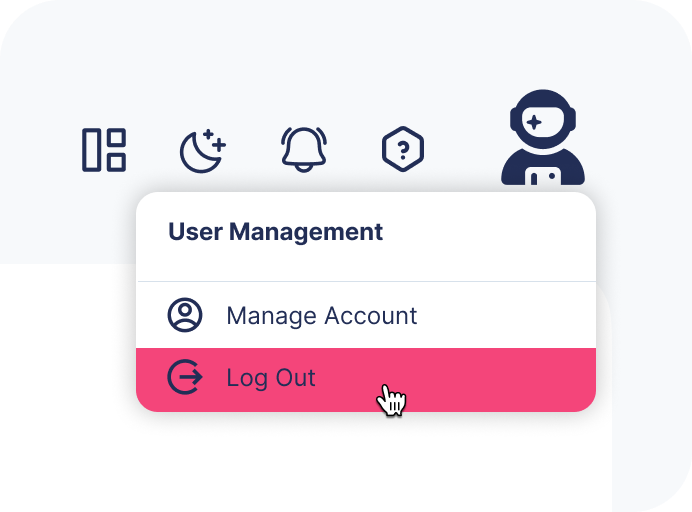
To sign out, click your username in the top-right corner and select **Log out**. This ends your session and returns you to the login page.
## Manage Account
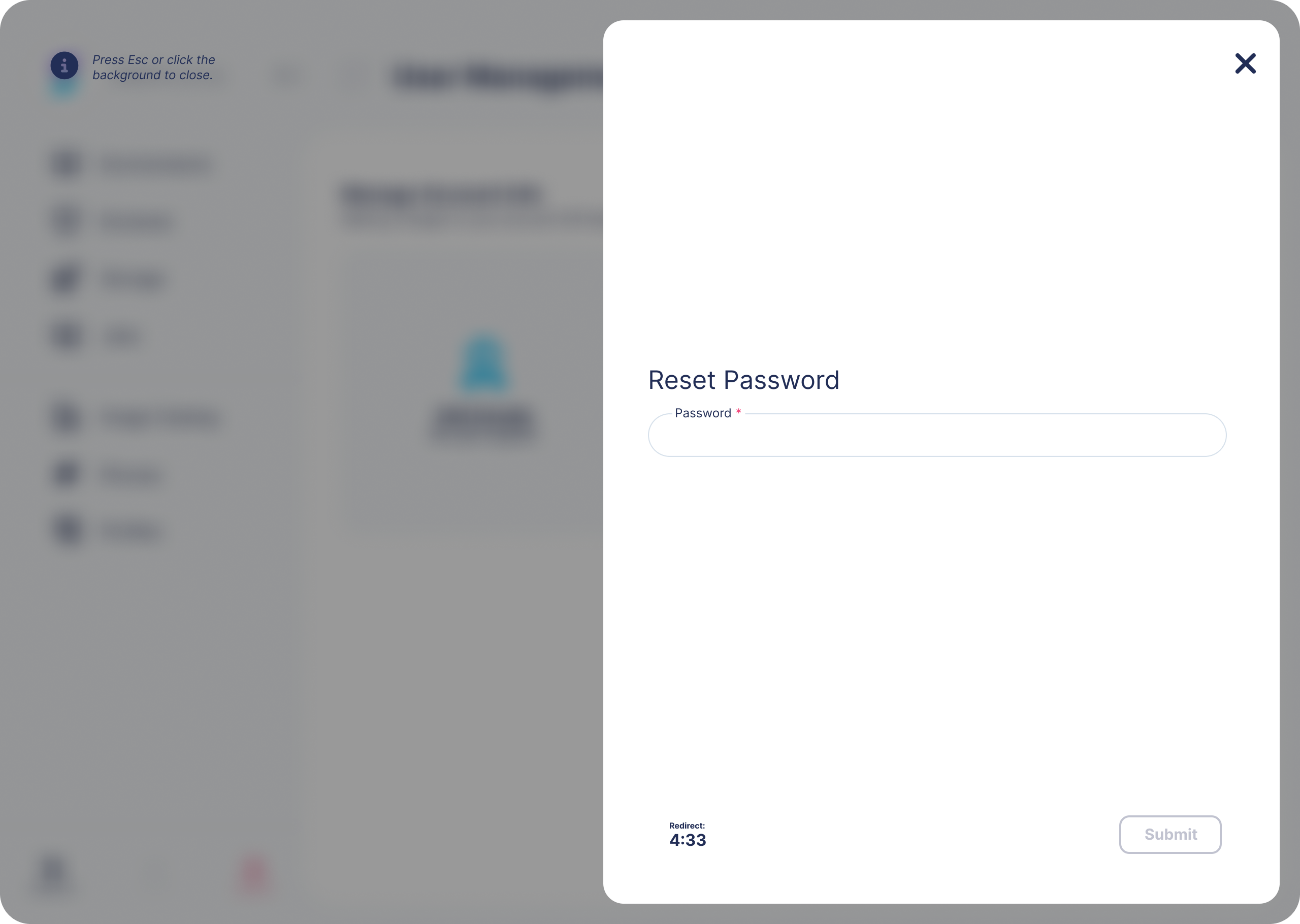
Use **Manage Account** to update basic account settings such as your name, email, and password. You can also reset your password or one-time password (OTP) authenticator. Every action requires re-authentication.
{% stepper %}
{% step %}
### Access Manage Account
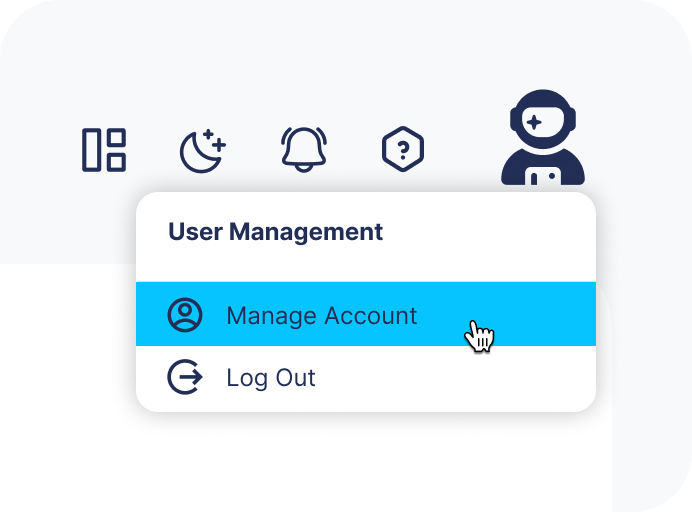
In the top-right corner, click your username, then select **Manage Account**.
{% endstep %}
{% step %}
### Account Management page
The Account Management page opens. From here, you can perform basic account actions.
{% endstep %}
{% step %}
### Re-authenticate for actions
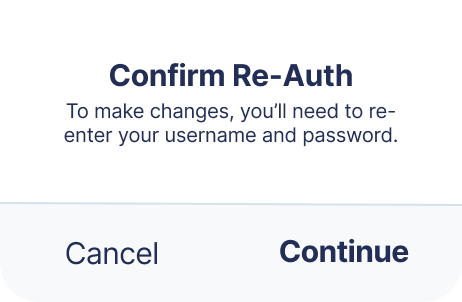
Every action on this page requires re-authentication because it changes account-level settings. When you select an action, a prompt appears and walks you through that step.
{% endstep %}
{% endstepper %}
## Change Password
Use **Change Password** to update your password. On your next login, use the new password.
{% stepper %}
{% step %}
### Open Change Password
After you select **Change Password** and re-authenticate, the password form opens.
{% endstep %}
{% step %}
### Submit and use new password
Submit the form to save your new password. Use that password the next time you sign in.
{% endstep %}
{% endstepper %}
## Reset OTP
Use **Reset OTP** to reset the one-time password method for the current user. After the reset, you must register a new authenticator device.
{% stepper %}
{% step %}
### Initiate Reset OTP
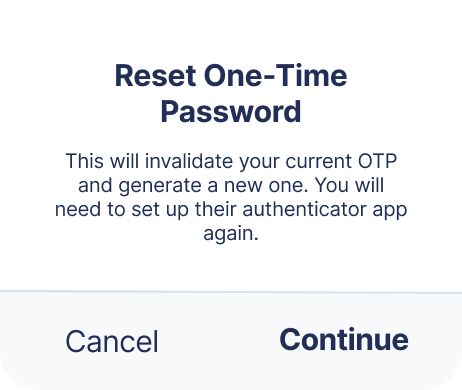
After you select **Reset OTP** and re-authenticate, you return to the Manage Account page and see the following prompt.
{% endstep %}
{% step %}
### Confirm Reset OTP
Click **Reset OTP** to continue. On your next login, enter your username and password as usual. Replica then takes you to the OTP setup page and shows the steps to register a new authenticator.
{% endstep %}
{% step %}
### Complete OTP setup
Complete the setup steps to finish sign-in and return to the application.
{% endstep %}
{% endstepper %}
## API Keys
Use **API Keys** to create personal keys for scripting or automating access to Replica outside the web interface. Every action on this page requires re-authentication.
{% hint style="warning" %}
An API Key inherits your current permissions live, at the time each request is made. Anyone with the key can act as you within those permissions until it expires or you revoke it.
{% endhint %}
{% stepper %}
{% step %}
### Access API Keys
After you select **Manage Account** and re-authenticate, select **API Keys**.
{% endstep %}
{% step %}
### Create an API Key
Select **Create API Key**, enter a nickname, and choose an expiration date up to one year out. Submit the form to create the key.
{% endstep %}
{% step %}
### Copy your key
Replica shows the plaintext key once, immediately after creation.
{% hint style="danger" %}
Copy your key now. For security, you won't be able to see it again. If you lose it, revoke it and create a new one.
{% endhint %}
{% endstep %}
{% step %}
### Use your key
Include the key in the `Authorization` header of your API requests: `Authorization: ApiKey `.
{% endstep %}
{% endstepper %}
### Revoke an API Key
Select **Revoke** next to a key in the list to permanently disable it.
{% hint style="danger" %}
Revoking a key takes effect immediately and cannot be undone. Any application still using that key stops working right away.
{% endhint %}
---
# Agent Instructions
This documentation is published with GitBook. GitBook is the documentation platform designed so that both humans and AI agents can read, navigate, and reason over technical content effectively. Learn more at gitbook.com.
## Querying This Documentation
If you need additional information that is not directly available in this page, you can query the documentation by asking a question.
Perform an HTTP GET request on the following URL with the `ask` and `goal` query parameters:
```
GET https://docs.replicacyber.com/user-guide/account.md?ask=&goal=
```
`ask` is the immediate question: it should be specific, self-contained, and written in natural language.
`goal` is what the user is ultimately trying to achieve, the reason they need the answer. Sharing it helps GitBook give you a better, more relevant answer. A goal is most helpful when it describes the outcome the user wants rather than restating the question. For example, with `ask=how do I create an API token`, a goal like `automate deployments from our CI pipeline` lets GitBook tailor the answer to that use case.
The response will contain a direct answer to the question and relevant excerpts and sources from the documentation.
Use this mechanism when the answer is not explicitly present in the current page, you need clarification or additional context, or you want to retrieve related documentation sections.

.png)

